
The Viewer's Tree View (shown below) allows you to find individual results without using the Select Data form. However, since this is an ActiveX control, it can become disabled after a Windows or Access update.

To fix this, and with the Viewer open, on the Access Menu bar click on File.

Mouse to the bottom of the selection and choose Options to open the Access Options form (not shown).
Next click Trust Center to open the Trust Center form.
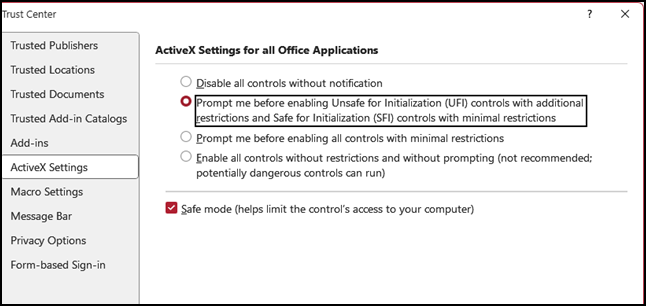
On this form click Trust Center Settings where you will likely see ActiveX Settings. The Disable all controls without notification selected.

Change the selected option to Prompt me before enabling Unsafe for Initialization (UFI) controls…. This is the second most restricted security option.
Check the Safe mode… checkbox.
Now click OK to close the Trust Center.
You should now be back in the Access Option form. Click OK to close it.
Finally, test the Tree View to ensure it is working. If you still have problems, please contact